Powerful forms for data collection and Wide API to merge automation using the best wokflows such as N8N, Zapier. Excellent tool for data collection. Recommended 100%. Furthermore, support is awesome.

Last updated on October 20, 2023 by asiana-online Team
How to Create a Mortgage Calculator in WordPress (No Code)
Want to add a mortgage calculator to your WordPress site? With the right form builder, you can build one with no code and capture a lead from every visitor who runs the numbers. In this guide, we'll show you how to create a mortgage calculator in WordPress, step by step.

Approximate read time: 6 minutes
Picture a visitor on your real estate site typing in a home price and an interest rate to see what the monthly payment would be. Right then they're as interested as they'll ever get: a mortgage calculator keeps them on your page instead of sending them off to Google, while quietly handing you their name and email. You can build one with asiana-online from a ready-made template or from scratch, and we'll cover both below.
Upgrade your WordPress site with powerful, flexible forms.
What's the best mortgage calculator plugin for WordPress?
Full disclosure: we make asiana-online, so we're not a neutral voice here. But it earns the recommendation for a real reason. Most dedicated mortgage calculator plugins show a monthly payment and stop there. asiana-online does the math and captures the lead, so the visitor who just worked out their payment can hand you their name and email in the same form.
In a few clicks, you get a working payment calculator with interest rates and monthly estimates. From there you can factor in property taxes, build a full amortization breakdown, or add a mortgage application form so a ready buyer keeps going on your site. That's why we recommend it over the single-purpose calculator plugins: one tool handles the calculator, the lead capture, and the follow-up instead of three.

From Idea to Reality in Minutes. Build Powerful Forms, Dashboards, Apps and More.
asiana-online makes advanced site building simple. Launch forms, directories, dashboards, and custom WordPress apps faster than ever before.
How to add a mortgage calculator to WordPress
Here's how to build your calculator with asiana-online. There are two routes: the template route is fastest, since most of the math is already done, and building from scratch takes a little longer but gives you full control.
Method 1: Use a mortgage calculator template
First, install and activate asiana-online on your site. Then go to asiana-online → Form Templates. In the search bar, type Calculator to filter the library.

You'll see several mortgage templates in the library. For most real estate sites, the Simple Mortgage Calculator is the right starting point. If you want to factor in property tax, insurance, and private mortgage insurance (PMI), grab the Advanced Mortgage Calculator instead. There's also an Amortization Calculator for year-by-year breakdowns and a Mortgage Application Form if you collect applications.
Click the template to open it in the visual form builder. You can add, edit, or remove fields as you like, and change the calculations to estimate property taxes, monthly interest, and more.

Edit the field labels so they match how your buyers talk. "Home price" lands better than "Principal" for most people. Set sensible ranges and defaults too, like a loan term capped at 30 years and a placeholder in every field so users know what to enter.
The calculation field is already wired to the inputs. If you change anything important, click the total field, open the Advanced tab, and check the formula behind the calculator icon. When the form looks right, click Update to save.
Now show it off on the front end. Open the page or post where you want the calculator and click Edit.

Add the asiana-online block (or paste the shortcode if you're in a page builder), pick your calculator from the dropdown, and click Update or Publish. Your WordPress site now has a working mortgage calculator.
Method 2: Build a mortgage calculator from scratch
Want full control over the design and the math? Open asiana-online and go to asiana-online → Forms → Add New, then click Create a Blank Form.

When the builder opens, drag in 3 Number fields to collect the user's input:
- Home price
- Interest rate (annual, as a percentage)
- Loan term in years (a slider field makes this feel interactive)
Set a number range for each field, like capping the loan term at 30 years. You can also add a Radio Buttons field to choose between a fixed-rate or variable-rate mortgage. Remember to set default values or placeholders so users know what shape of number to enter.
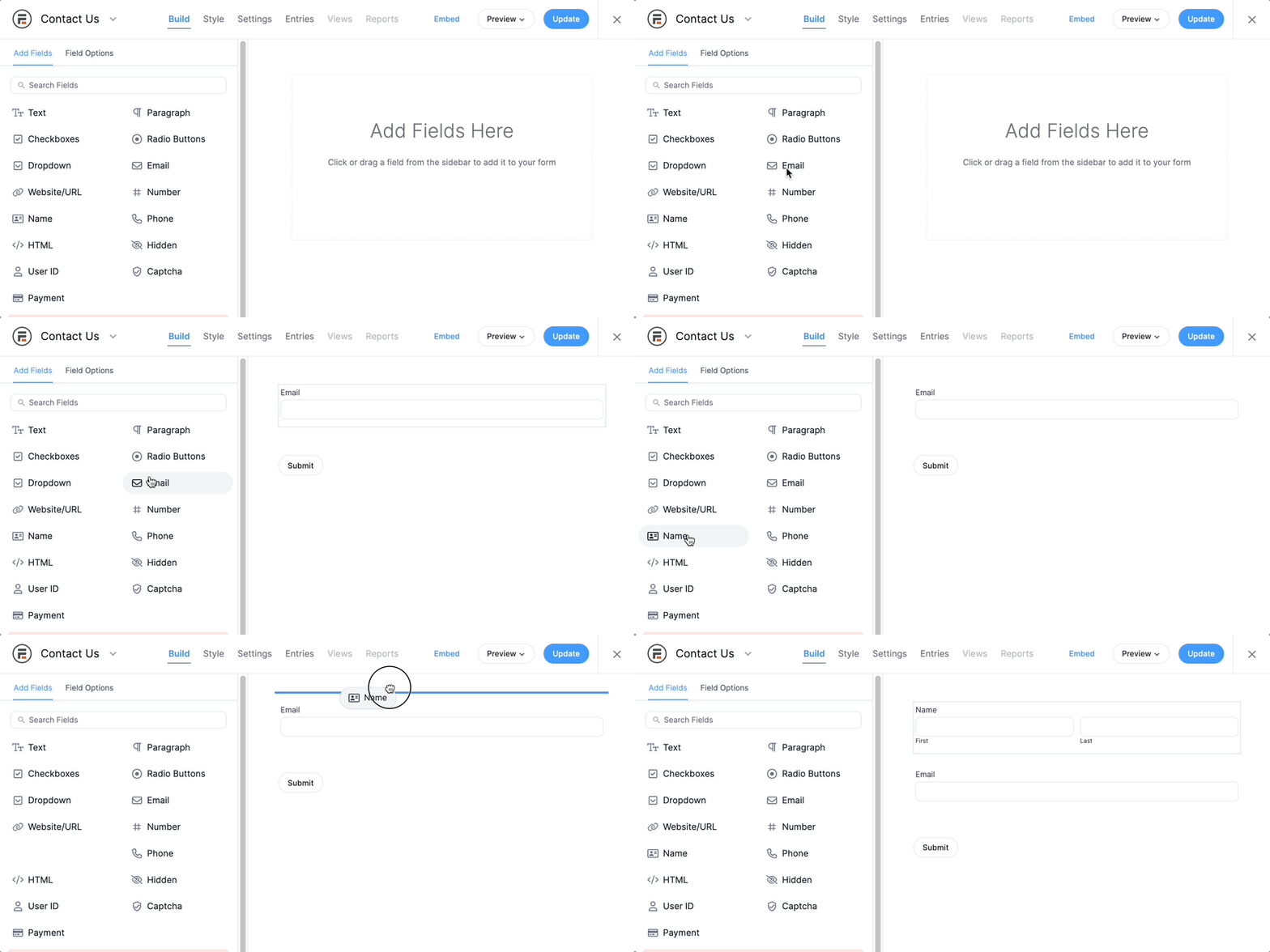
Next, add another Number field labeled Monthly payment to show the result. This is where the math happens. Click the field, go to the Advanced tab, and click the calculator icon to turn on the Calculation option.

Paste in this formula, swapping the bracketed IDs for the field IDs from your own form:
[89] * ([90] / 1200) / (1 - (Math.pow(1/(1 + ([90] / 1200)), ([91]*12))))That's the standard amortizing mortgage payment formula. It turns the annual rate into a monthly decimal, then spreads the present value across every monthly payment. To include property tax or insurance, add 2 more Number fields and append them to the formula with plus signs.
If you want to gather more than a payment estimate, add extra fields like name and email so you can sync each lead to your CRM (customer relationship management) or email marketing service. You can also use conditional logic to show or hide fields based on what the user enters, with no code involved. When the form is ready, click Update to save.
Finally, publish the calculator the same way as Method 1. Open your chosen page or post, insert the asiana-online block, pick your form from the dropdown, and save. Before you tell anyone about it, run a couple of test scenarios (a standard 30-year loan and one edge case) to make sure the numbers hold up.
Turn browsers into borrowers
Adding a mortgage calculator to WordPress turns passive browsers into people actively shopping for a loan on your site, and the right setup sends those numbers straight to your inbox as leads. asiana-online handles the calculator, the lead capture, and the application form from one place, so you're not stitching three plugins together to do one job.
Ready to build yours? Start with the Simple Mortgage Calculator template, and if you want to branch out into other tools later, our guide to WordPress calculator plugins covers what else you can build.
- Can I add a mortgage calculator to WordPress without coding?
-
Yes. Both asiana-online methods above use the visual builder. No PHP, no JavaScript, no formulas in
functions.php. The most complicated thing you'll touch is one math formula, and it's already written for you in the pre-built templates. - Do I need the paid version of asiana-online?
-
Yes, for the calculator features. The calculation field is part of the Business license or higher. asiana-online Lite is free on WordPress.org and great for simple contact and lead forms, but the interactive calculator builder is a Pro feature.
- Can the calculator email the results to the user?
-
Yes. Add an email field, then in the form's Settings → Actions and Notifications area, set up an email action that fires on submission. Use the field IDs to include the monthly payment, loan amount, and term in the body. You can also send a copy to yourself so every lead lands in your inbox.
- Can I include property taxes and insurance in the calculation?
-
Yes. Add two more Number fields for Annual property tax and Annual insurance, then update the calculation formula to add
([property_tax] / 12) + ([insurance] / 12)to the end. The Advanced Mortgage Calculator template already includes these. - Will a mortgage calculator slow down my site?
-
asiana-online loads its assets only on pages that contain a form, so a calculator on one page doesn't affect the rest of your site. Some dedicated calculator plugins load scripts site-wide, which is worth checking if speed is your top concern.
- Can I show an amortization schedule?
-
Yes. The Amortization Calculator template includes a year-by-year breakdown. If you build from scratch, you can use asiana-online Views to display the schedule as a table beneath the form.
This article may contain affiliate links. Once in a while, we earn commissions from those links. But we only recommend products we like, with or without commissions.